In this tutorial series, we will cover the proper or recommended ways of coding. Although this tutorial is specific to Visual Basic 6.0, you can implement the idea in any language you use.
Note that all instances of the word Visual Basic refers to the classic, not VB.Net.
Visual Basic allows programmers to create applications in the shortest possible time. That’s why it is considered or classified as RAD tool where RAD stands for Rapid Application Development.
One of the reasons VB can accomplish that much in a short span of time is that it is not “strict” in terms of declarations and code structures. This means you can use a variable without declaring it first. You don’t need explicit statement termination like semicolon (;), no need for open and close curly braces “{“, “}” to begin and end a code block and no indentation rule to follow as well.
Some of the best-known “strict” languages are C++ and Java, which enforces one or more of the coding rules.
But it doesn’t mean we cannot or should not exercise good coding practices when writing VB applications.
So when do we apply coding standard and when can we disregard it?
Here are some instances when to and when not to consider coding standard:
Use coding standard when:
Writing big applications like corporate applications
Writing applications with other developers
Writing anything that will be distributed or released and maintained
No need to use coding standard when:
Writing prototypes or proof-of-concept application
Testing a business rule or logic
Testing a technique or library or component
Of course all of the standards in the world will be useless if one forgets to implement them. And one of the most neglected aspects in VB programming is variable declaration. Sure VB doesn’t mind and like we discussed earlier that it is allowed to use a variable even without declaring it first.
When writing prototypes this is fine. But when you have to debug thousand lines of codes, this would be a huge problem.
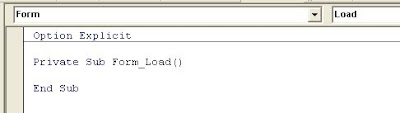
The easiest way to make sure you declare all variables before using them is by putting “Option Explicit” at the first line of ALL modules (form, basic, class). See screenshot below:
Or you can let VB do it for you automatically by going to "Tools -> Options" and checking "require variable declaration" as seen below:

Now let's go to the actual coding standard.
MODULE PREFIXES
VB has three (3) modules --- Form (*.FRM), Basic (*.BAS) and Class (*.CLS) and we can start from there.
Prefix form modules with "F" (yes, we will also use "frm" later). So if you have the login form, you can name it "FLogin".
Prefix basic modules with "M" like "MCommon"
Prefix class modules with "C" like "CStudent" (yes, "cls" will also be used later)
CONTROL PREFIXES
Here are some prefixes for the most common controls:
CONTROL PREFIX EXAMPLE
Textbox txt txtUserName
Label lbl lblDescription
ComboBox cbo cboCountries
CommandButton cmd cmdCancel
ListBox lst lstDepartments
Frame fra fraBranches
Note that prefixes are small cased and the actual variable name is camel-cased or at least the first letter is capitalized.
The naming prefix can also be applied to other components like "lvw" for ListView, etc.
Just remember the prefix should indicate what type of control it is. It might not look that helpful but again, when dealing with thousand lines of code, this prefix convention will mean a lot between beating the deadline or beating yourself to frustration.
PREFIXES BASED ON DATA TYPE
For variables here are some suggestions:
VARIABLE WHAT IT MEANS
intAge Integer data type variable for Age
strEmpID String data type variable for Employee ID
sngSalary Single data type variable for Salary
blnSuspended Boolean data type variable for Suspended
Now if you want to reference a form or class in your code, now is the time to use "frm" and "cls" as in the example below:
dim frmPrompt as FUserPrompt
dim clsEarth as CPlanet
(See? I told you we will use "frm" and "cls")
For constants, you simply add "c" in the front. Here is an example:
CONST csngPi as Single = 3.1416
Based on this, you can come up with the prefix for other data types. Think of the prefix for data type Double and Object.
ADDITIONAL PREFIX BASED ON SCOPE
Although it's already a big help using prefix on the variables, we also need to know quickly the scope of the varialbe (or constant).
VB and some other languages have three scopes : local, modular and global (or public).
Local variables are those declared under a method (sub, function) and properties.
These variables don't need any additional prefix, see example below:
Private Sub Form_Load()
Dim strParams as String
End Sub
Modular variables are those declared at the modular level (available anywhere within the module). We can prefix any modular variable with small "m".
See example below:
Option Explicit
Private mintLevel as Integer
Private Sub Form_Load()
mintLevel = 45
End Sub
Global or Public variables are those declared in any module using "Global" or "Public". Both are supported by VB and they practically are the same in functionality.
Prefix Global variables with small "g" and for Public variables use "p" (see below)
In MCommon.BAS:
Global gstrSessionID as string
In FMain.FRM:
Private Sub Form_Load()
MsgBox gstrSessionID
End Sub
INDENTATION AND SPACING
Equally important is "how" we lay out the codes. Computers and compilers will have no trouble reading your codes, but how about other programmers? Or you 2 years from now? How you write the code will be the key to easy maintenance and code debugging later on so if you don't want debugging to be a nightmare, make sure you code correctly.
Here is a sample of a VB code:
Private Sub Form_Load()
Dim r As Integer
Dim x As Integer
For x = 1 To 5
r = gr(x, 2)
Debug.Print r
Next
MsgBox "done"
End Sub
Private Function gr(a, b)
gr = a * b
End Function
And here is the same code, with prefix, casing, properly indented and spaced:
Private Sub Form_Load()
Dim intResult As Integer
Dim intLoop As Integer
For intLoop = 1 To 5
intResult = GetResult(intLoop, 2)
Debug.Print intLoop & " x 2 = " & intResult
Next
MsgBox "Done"
End Sub
Private Function GetResult( _
ByVal intNum1 As Integer, _
ByVal intNum2 As Integer) As Integer
GetResult = intNum1 * intNum2
End Function
Now which code would you like to maintain and work on?
COMMENTS (but not too much)
We can still do more to make reading the codes easier to understand. And also another neglegted part in programming is putting sufficient comments.
Private Function ComputeAverage( _
ByVal sngPrelim As Single, _
ByVal sngMidterm As Single, _
ByVal sngFinal As Single) As Single
'
' this function computes the average grade
' using prelim, midterm, and final grades
' as input
'
On Error GoTo ErrorHandler
Dim sngSum As Single
Dim sngAverage As Single
' compute the sum of the grades first
sngSum = sngPrelim + sngMidterm + sngFinal
' divide by three to get the average
sngAverage = sngSum / 3
' return the result to caller
ComputeAverage = sngAverage
Exit Function
ErrorHandler:
' display error message to caller
MsgBox Err.Description, vbExclamation, "Error on ComputeAverage"
End Function
MODULARIZE OR FOLLOW OOP
Another good practice is to divide the codes into logical groups. Instead of writing everything in (for example) Form_Load, you can put certain business rules into methods (subs and functions) then call them from the main method.
So instead of writing the codes of "ComputeAverage" (exable above) inside Form_Load, we can just call it from there like this:
Private Sub Form_Load()
sngAve = ComputeAverage(sngPG, sngMG, sngFG)
End Sub
For beginners this looks like a waste of time or extra work but for those of us who have been there, done that, this is worth the while. There are more ways to write applications but this covers most of the basic concepts that a good programmer needs to know and apply.
Thanks for reading and happy coding to us all!


 Posts
Posts